

Customer quotes
Save a price against a customer while you build a booking, then recall it when they ring back — without retyping the route or haggling twice.
Setting it up
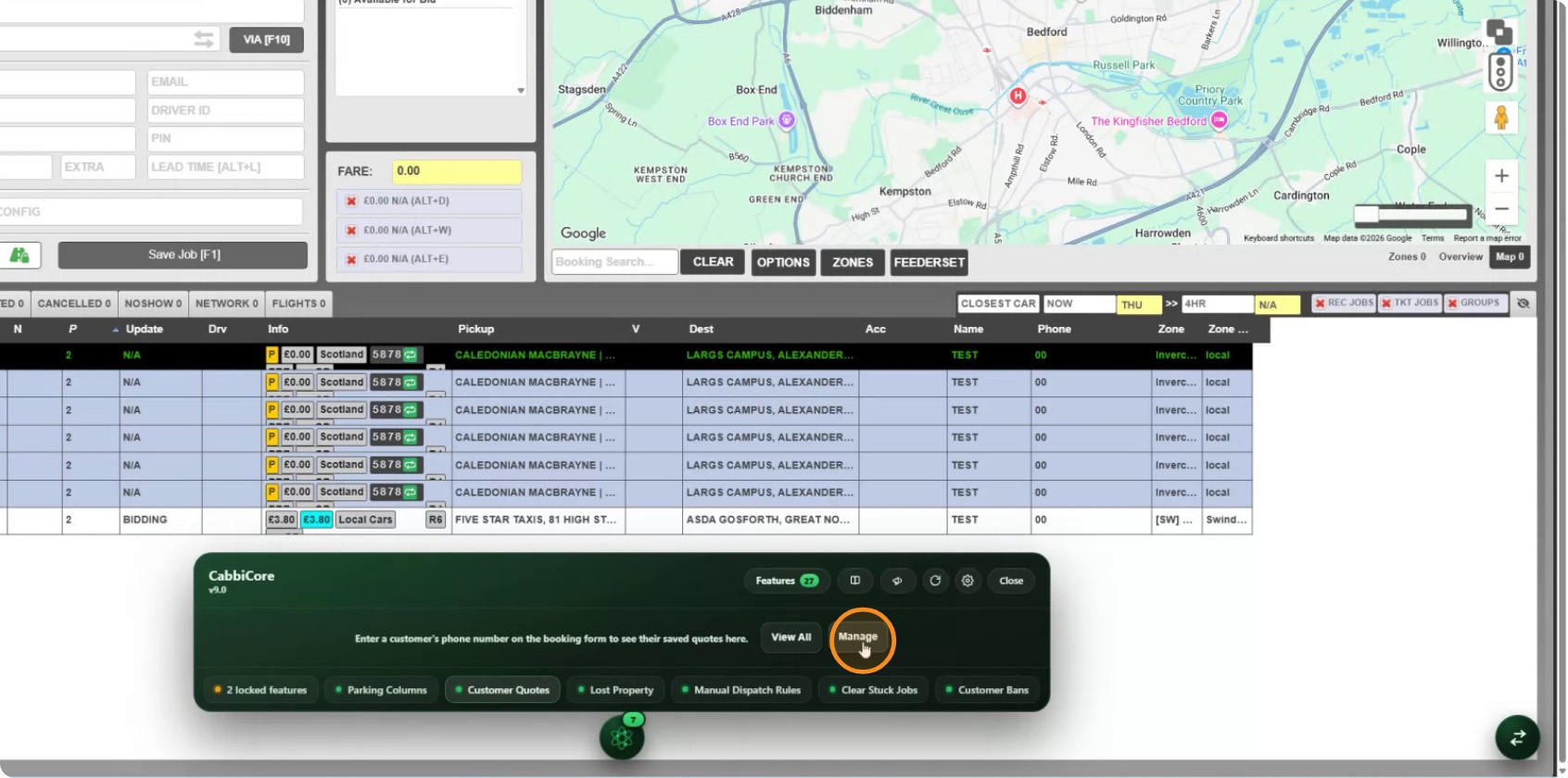
Step 1: Open the quote settings
In the CabbiCore console, open Customer Quotes and choose Manage.
Step 2: Choose which kinds of quote you allow
There are two, and you can allow either or both:
- Fixed — a price you have committed to
- Estimate — a guide price
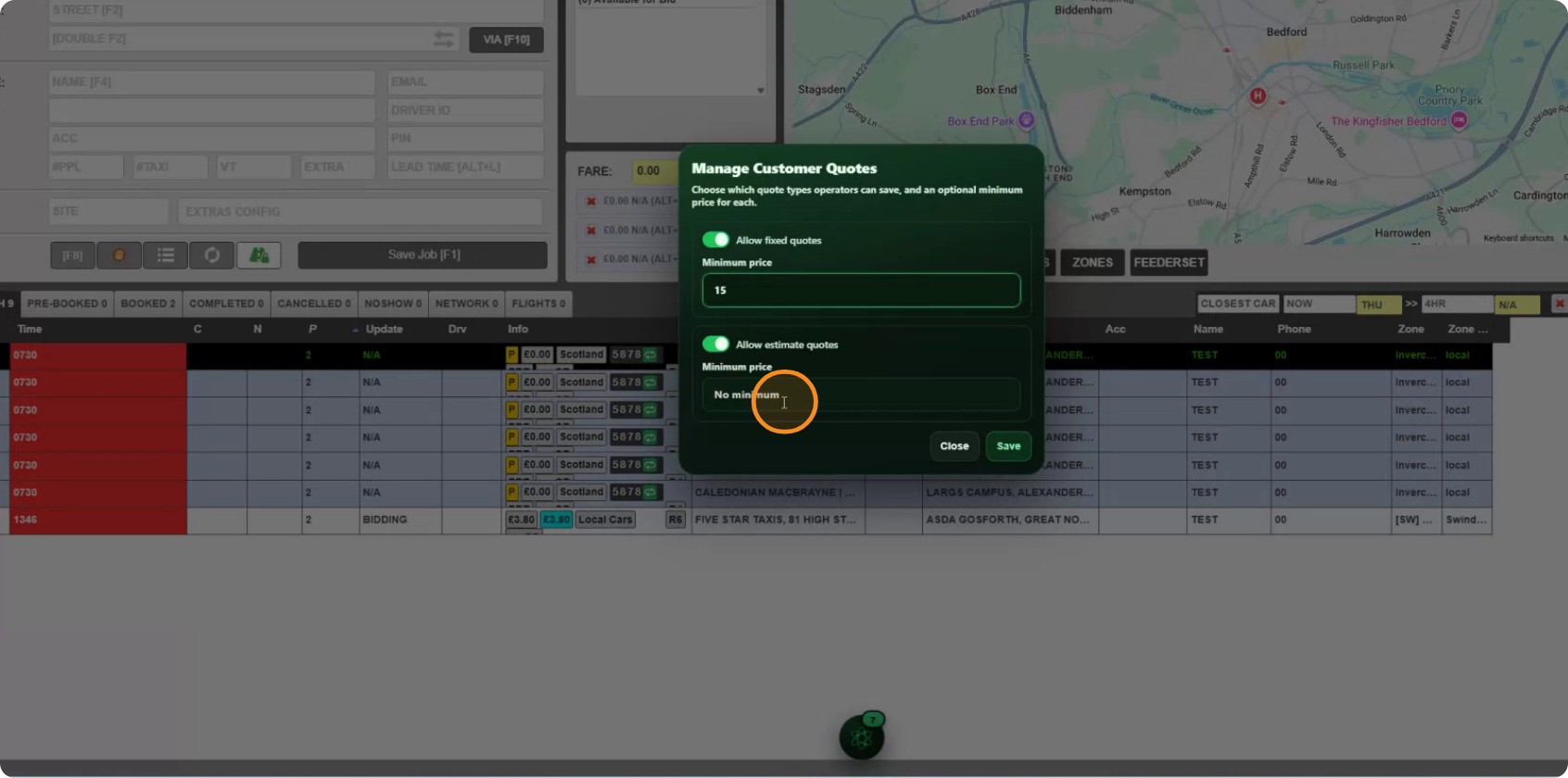
Turn one off and operators cannot save that kind at all.
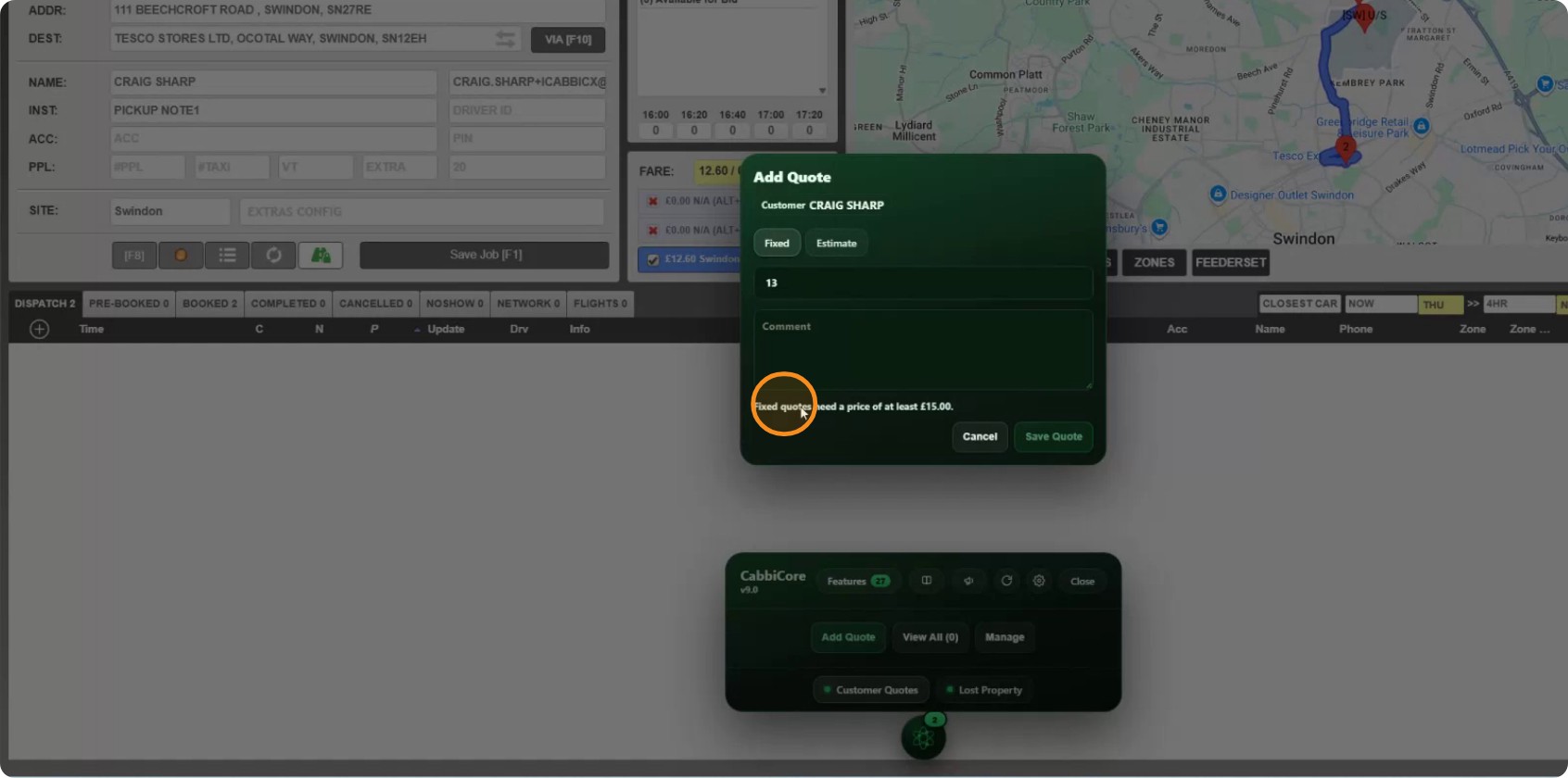
Step 3: Set a floor price, if you want one
Each type has its own minimum, set separately, and both are enforced — a minimum on estimates works exactly like a minimum on fixed.
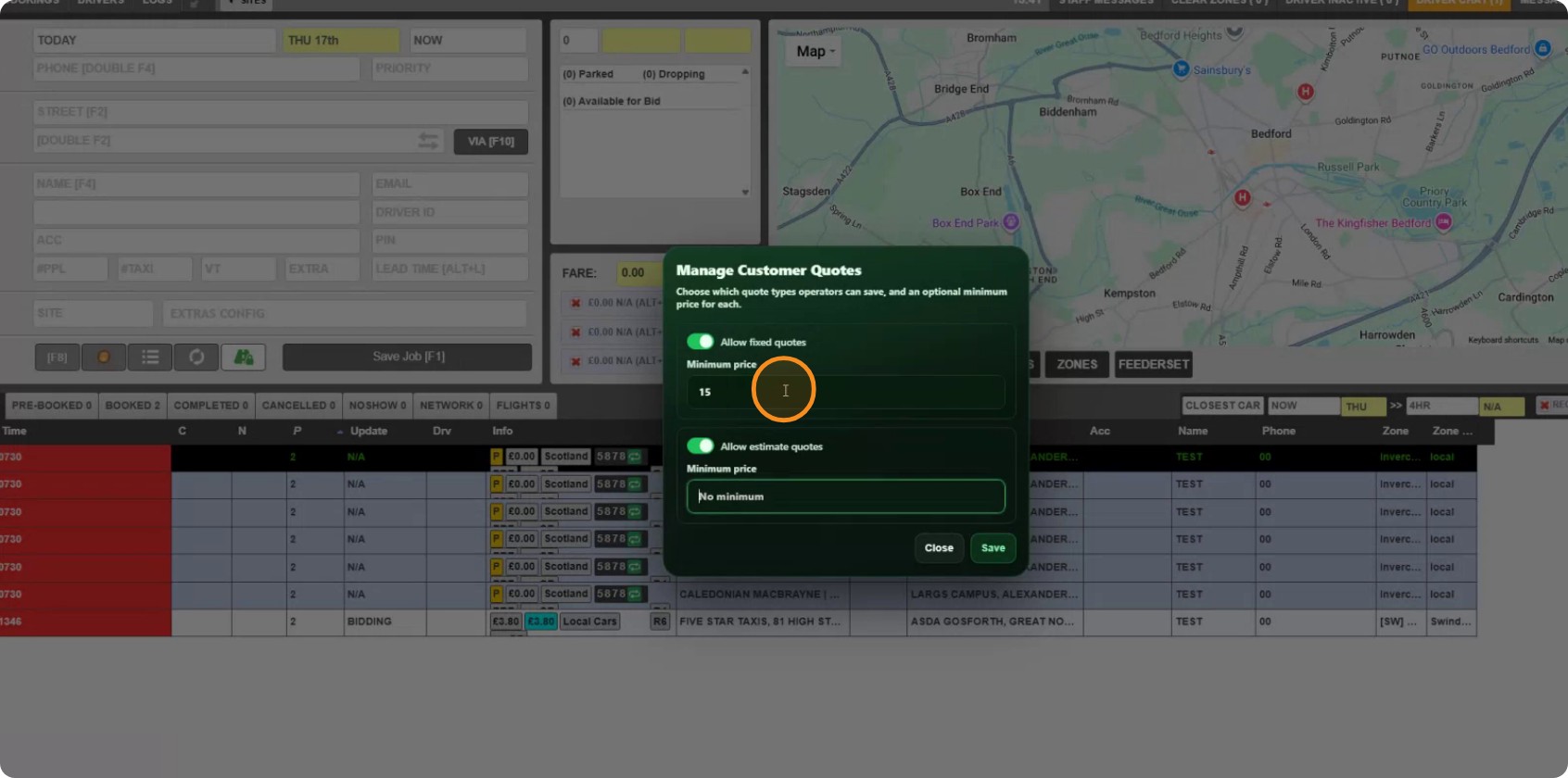
Leave either blank for no floor.
Saving a quote
Step 4: Build the booking first
A quote stores a route, so it needs one. Put in the pickup and destination as normal and let the fare calculate — CabbiCore fills the quote's price box with that fare to save you typing it.
When a phone number resolves on the booking form, the console opens itself on that customer's quotes. It pins open the way any tool does rather than throwing a pop-up over your work, and while you are on that customer it shows only Customer Quotes, so you are not hunting through the rest of the console mid-call.
Step 5: Add the quote
Click Add Quote.
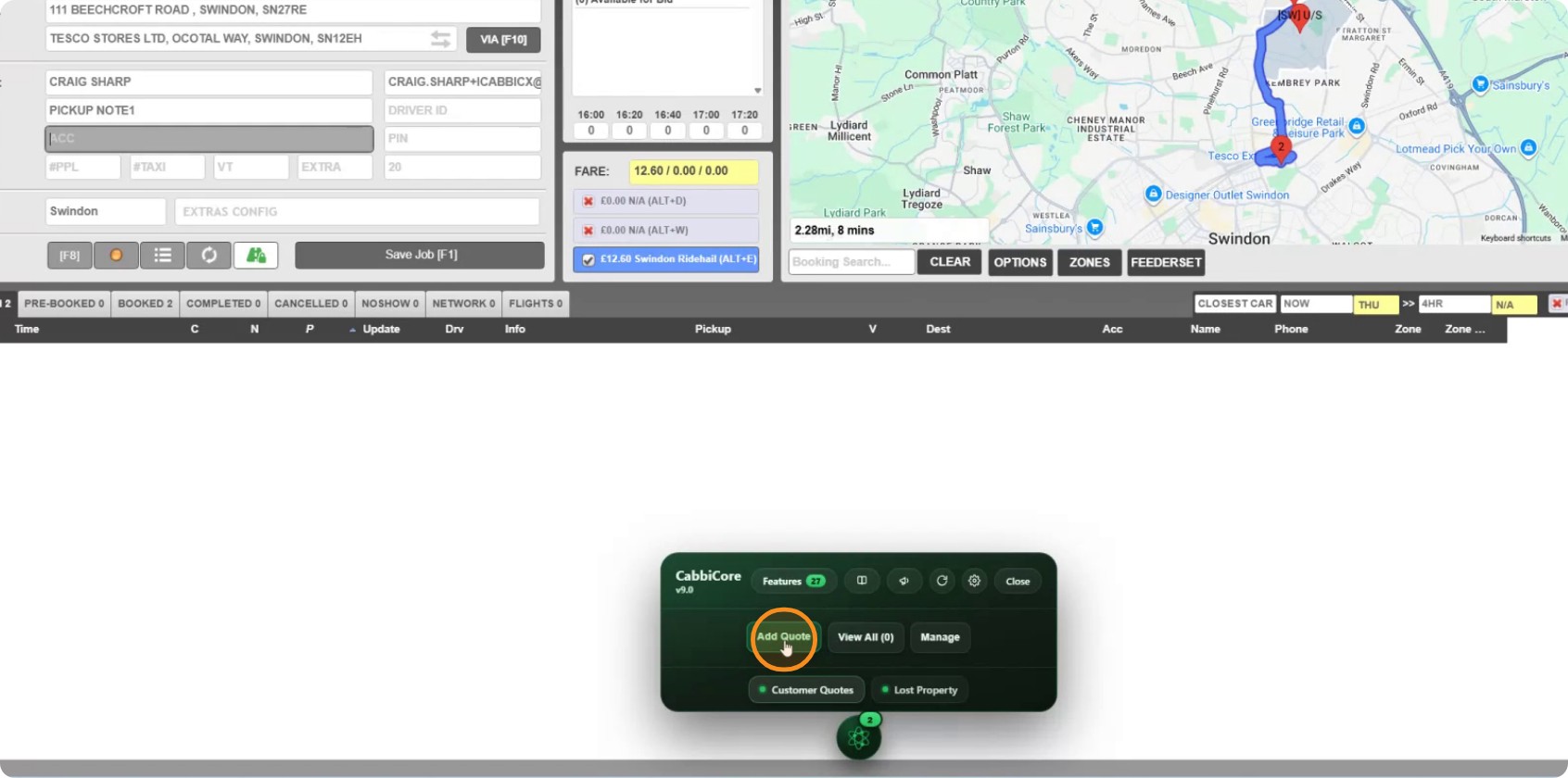
Choose fixed or estimate.
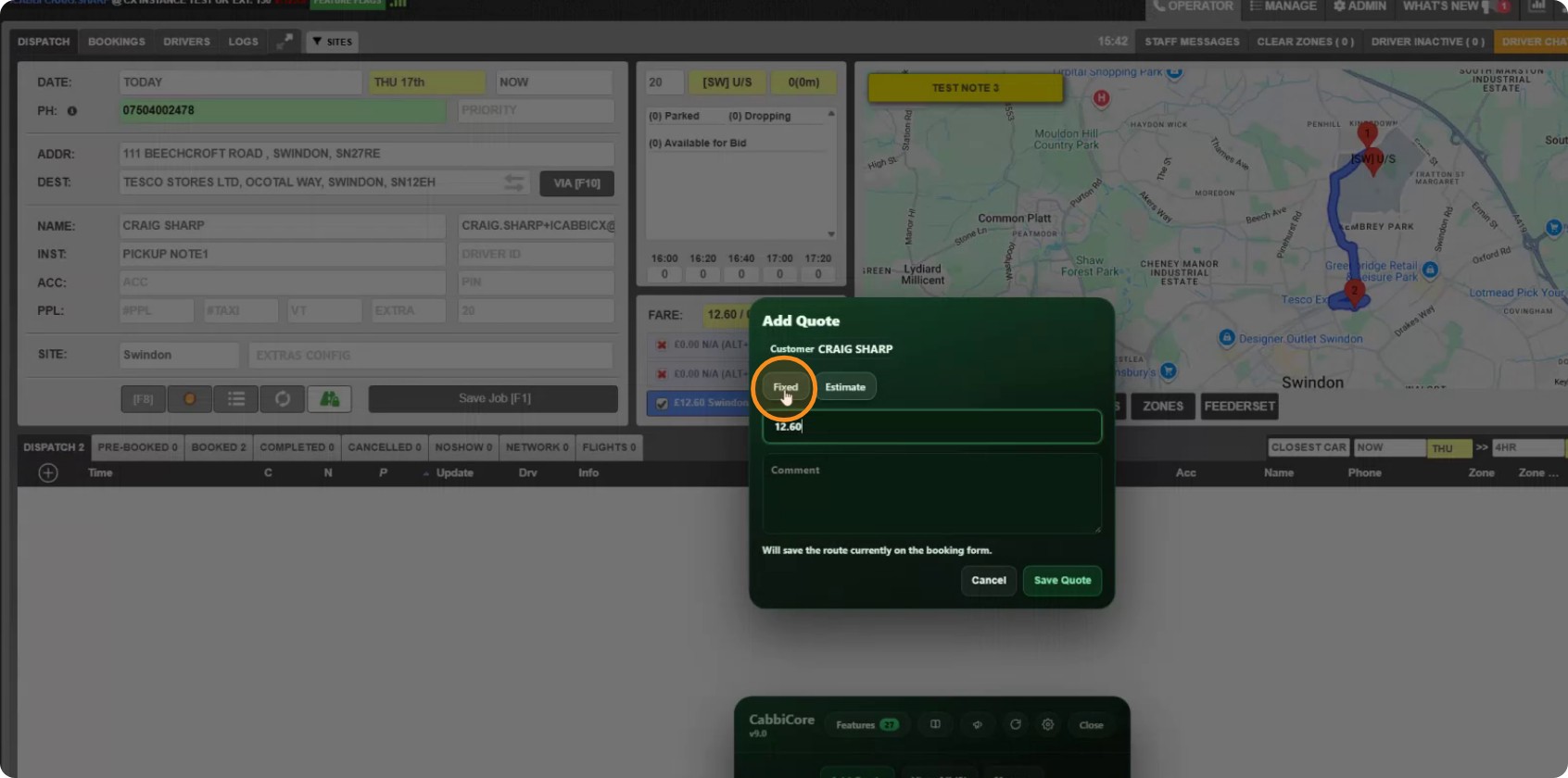
Step 6: Set the price
Type the price you have agreed. Below the minimum for that type, it will not save and tells you the floor.
Add a comment if there is anything the next operator should know — why the price is what it is, usually. Then Save.
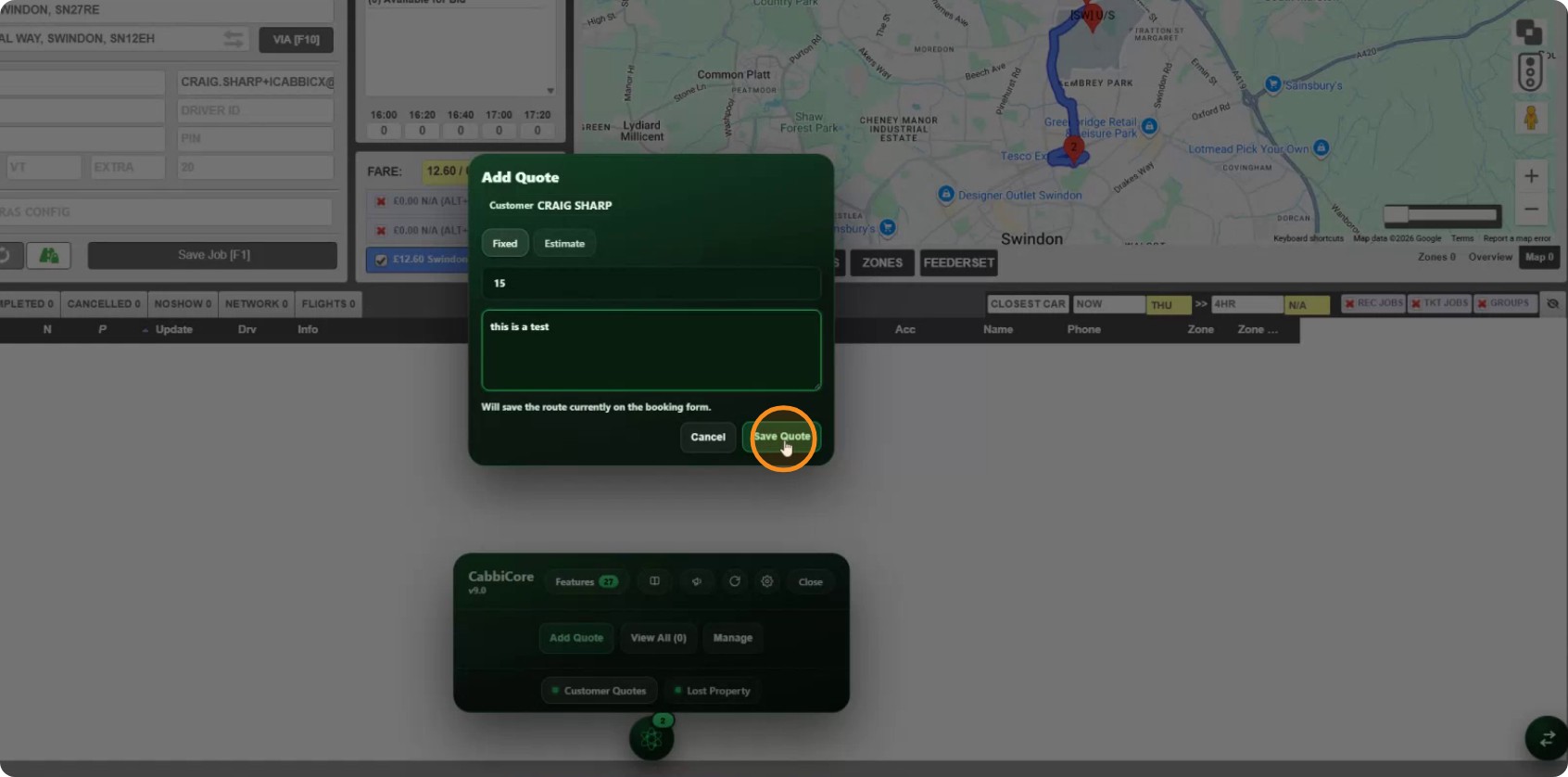
The quote keeps the pickup date and time from the booking you were building, so a price agreed for 6am next Tuesday stays attached to that journey rather than looking like tonight's fare.
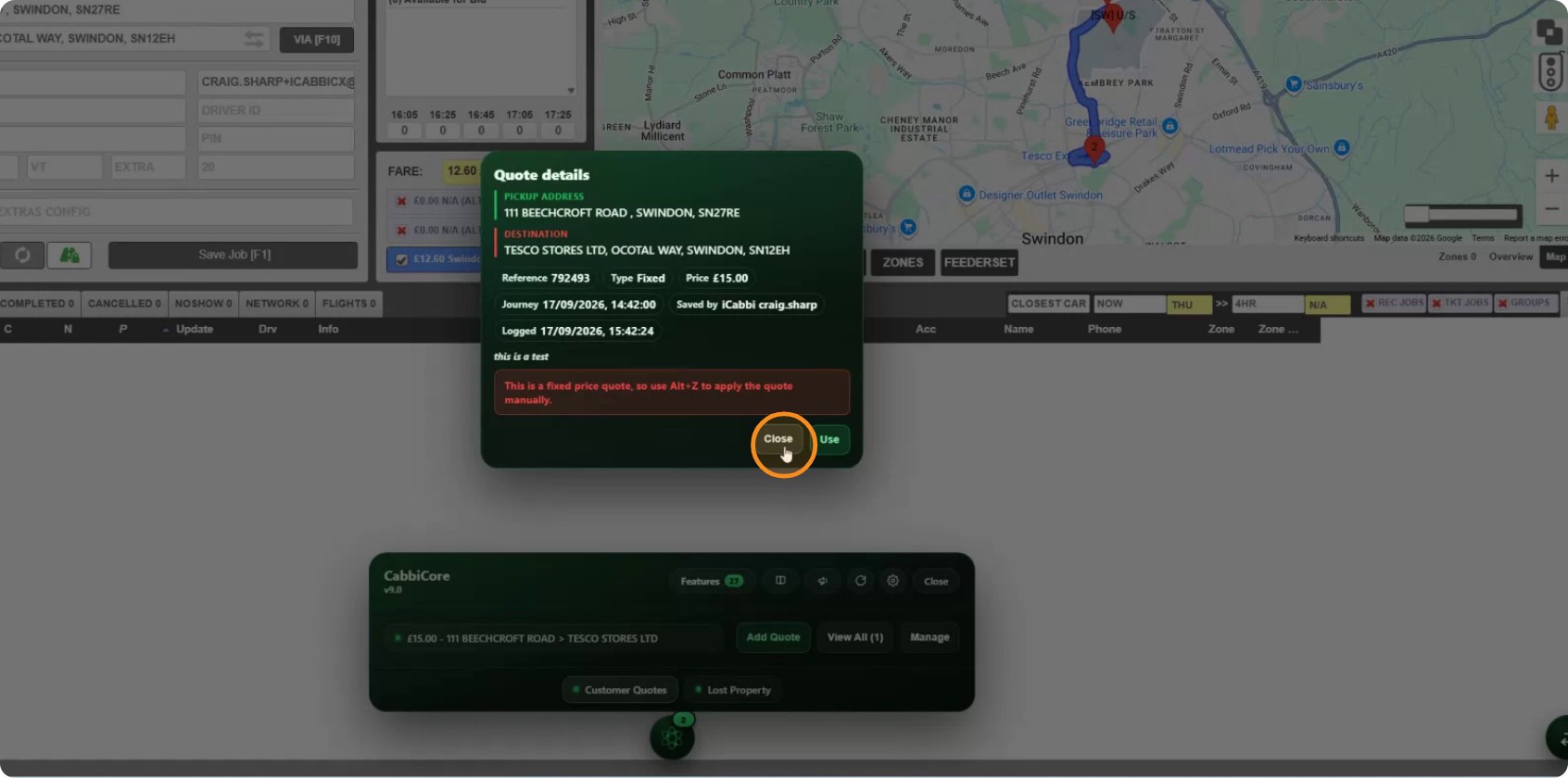
A fixed quote is not applied for you. Saving it records the price; putting it on the booking is a separate, deliberate step — press Alt+Z. CabbiCore will never silently change a fare.
Using one
Step 7: Find it on the booking
Saved quotes sit at the bottom of the booking screen.
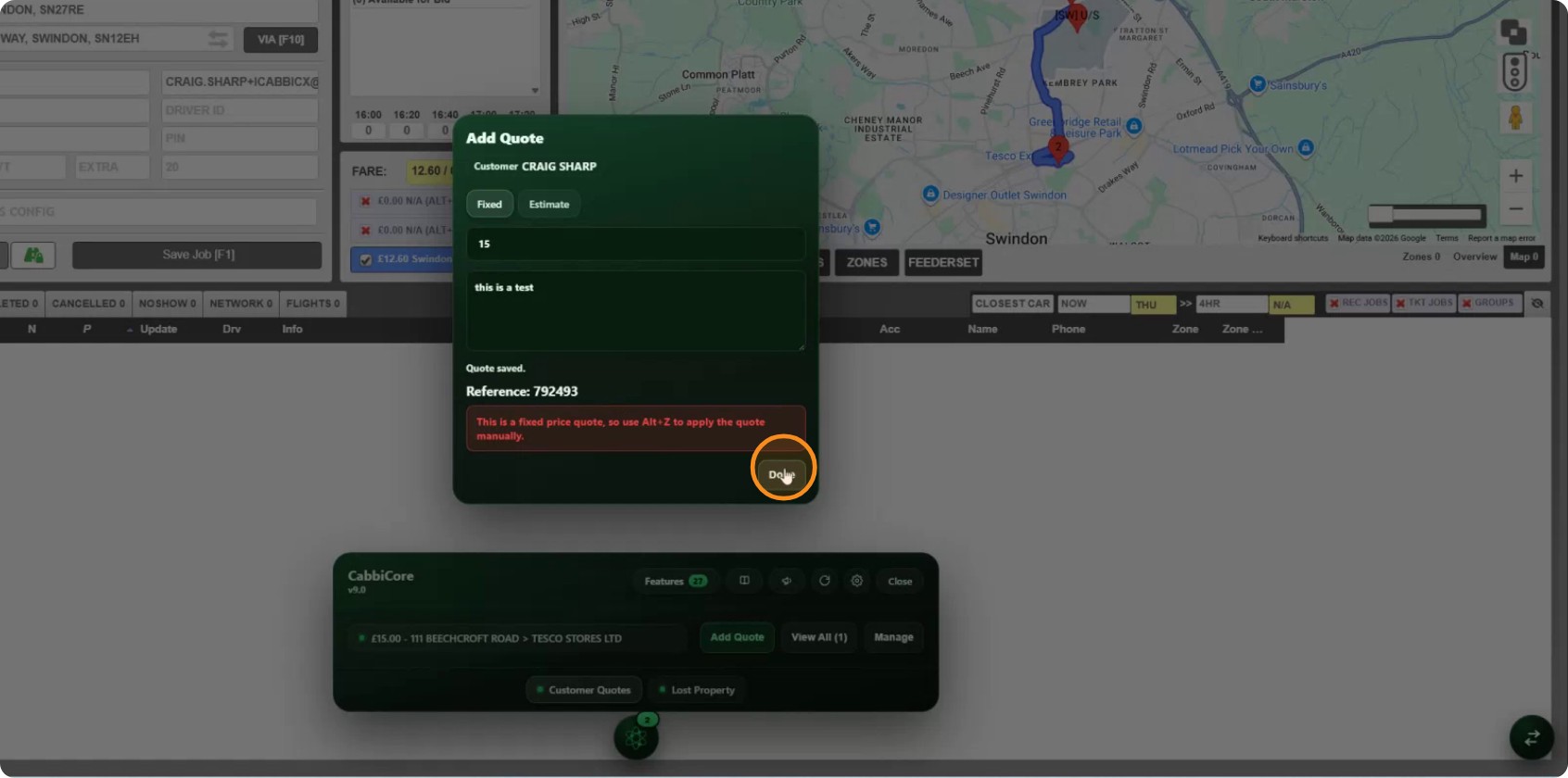
Hover for the detail. Click for the full card, which shows the reference, the type, the price, the journey it was quoted for, who saved it and when it was logged.
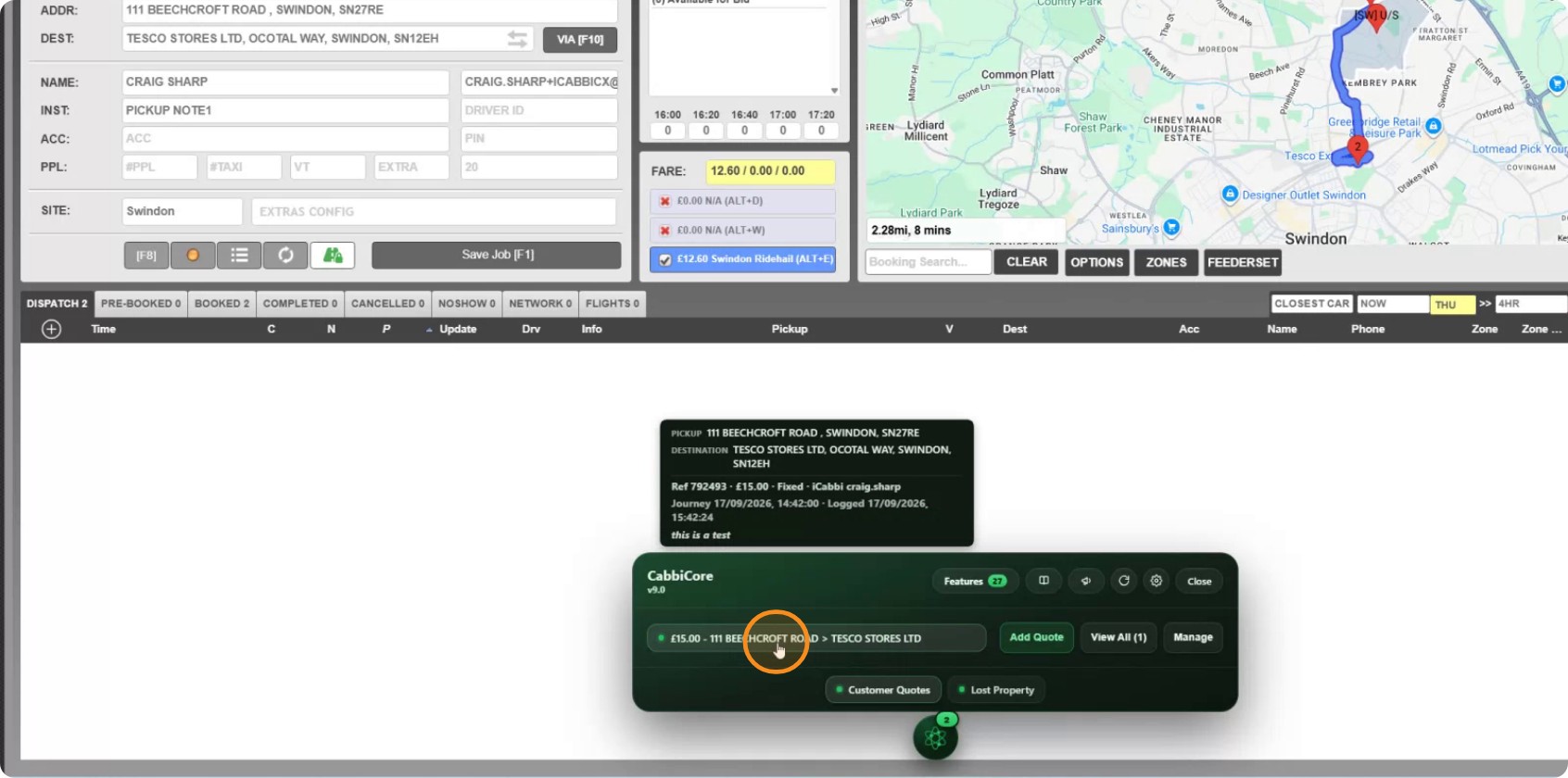
The journey date is the one to check when a customer says "you quoted me £15" — it tells you whether that was for this trip or a different one.
Step 8: Apply it
Click Use.
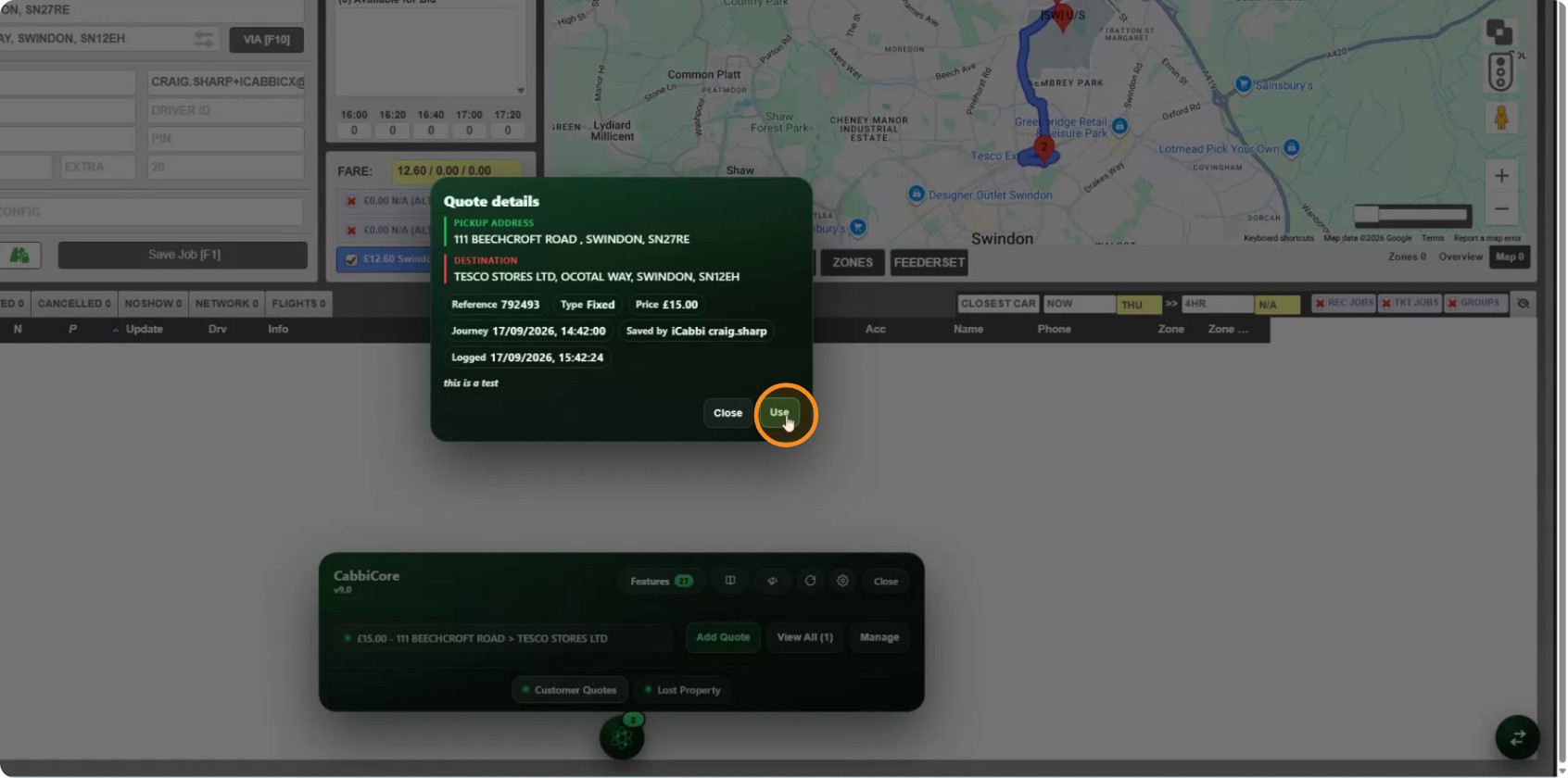
The booking form fills in from the quote.
Step 9: Search every quote
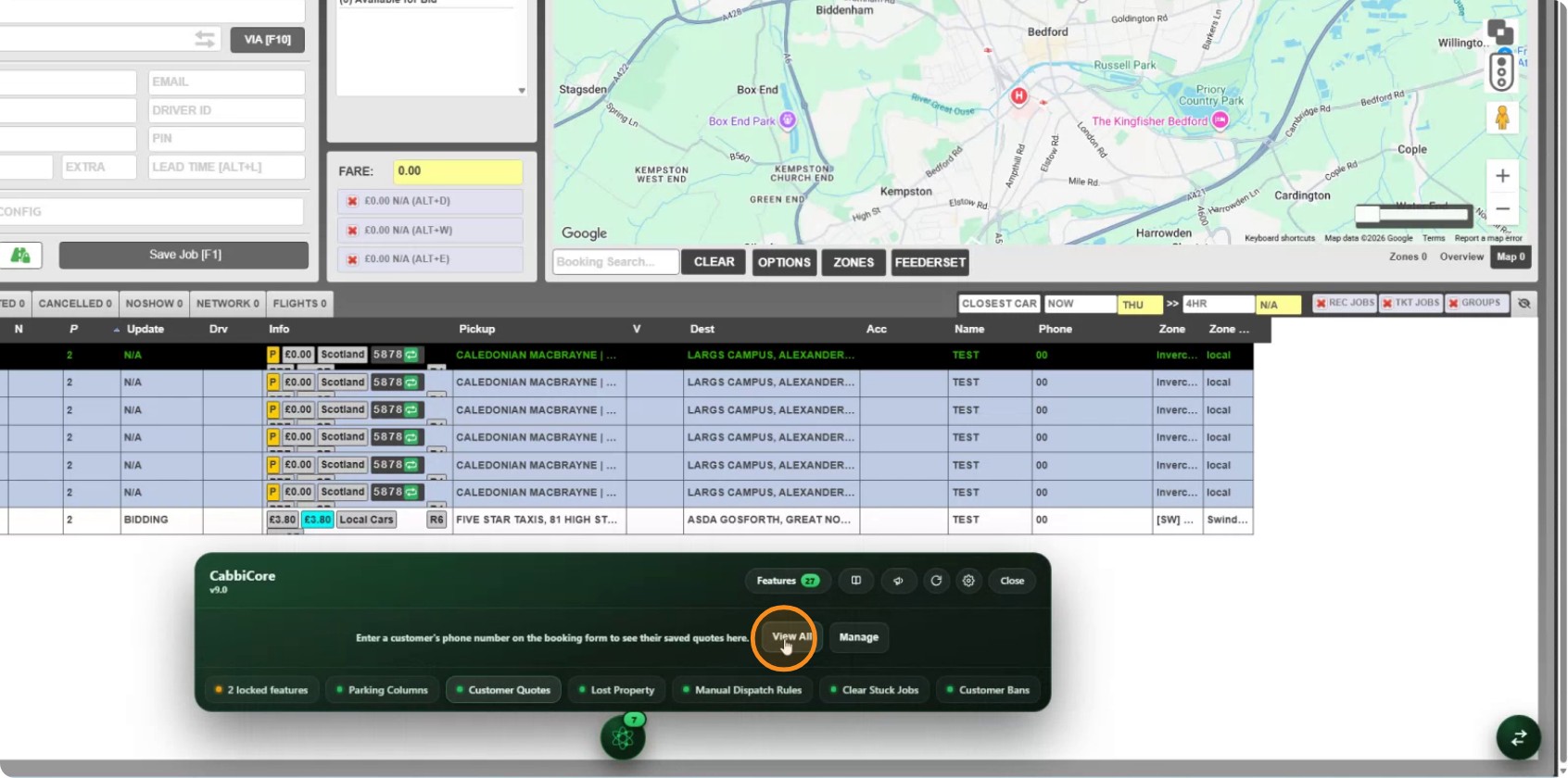
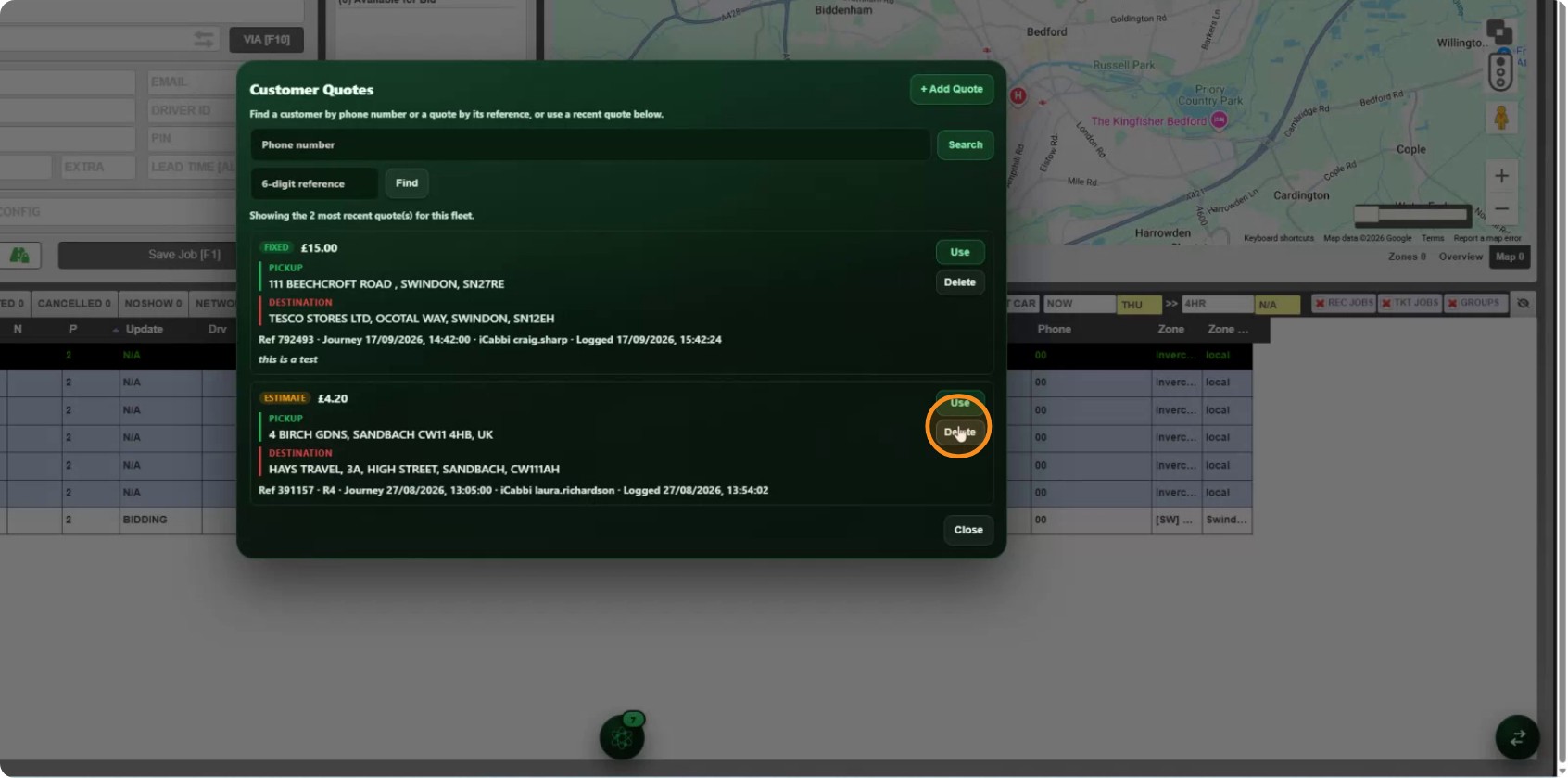
View all opens the full list.
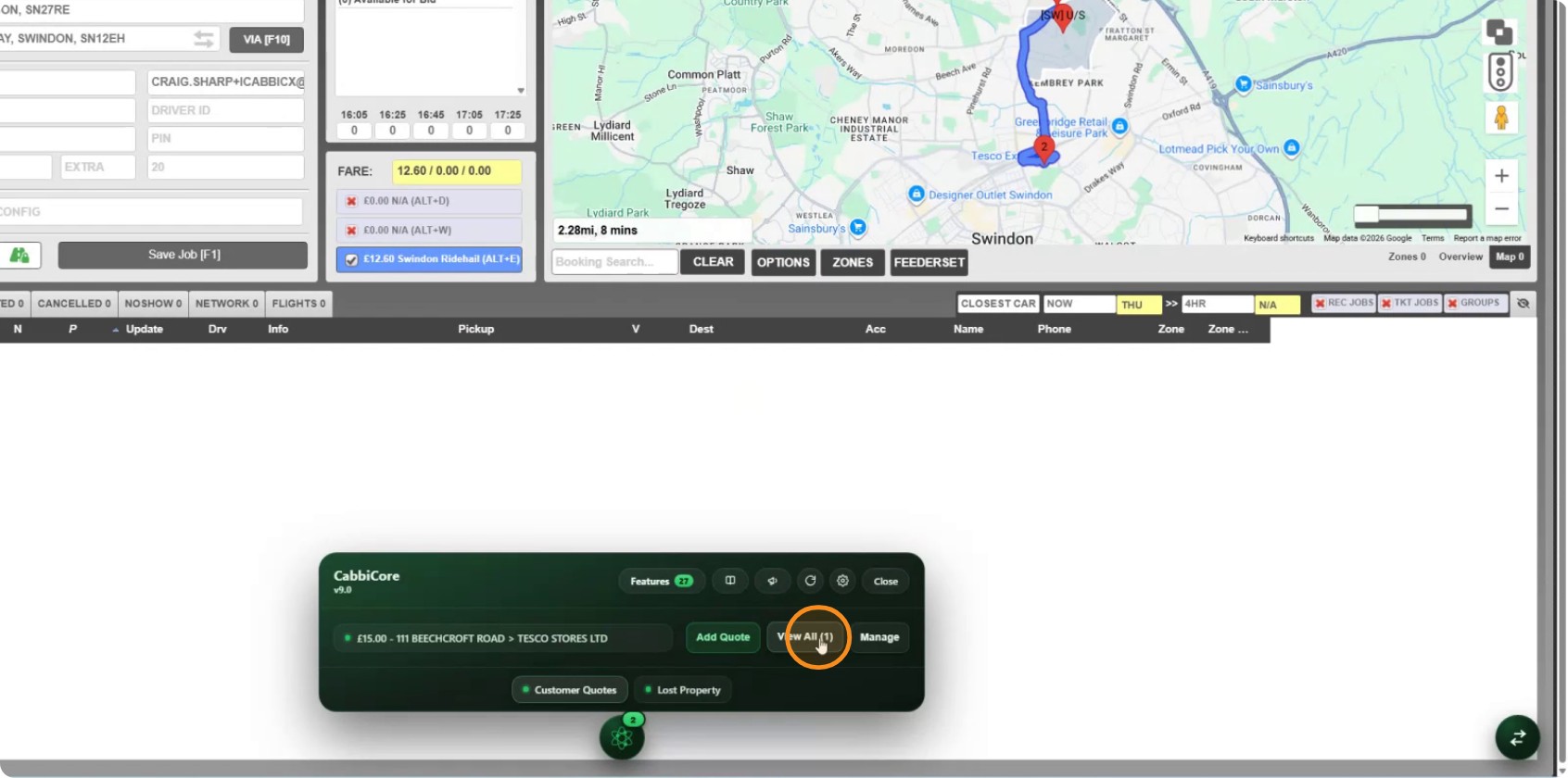
Search by the quote's six-digit reference, or by phone number.
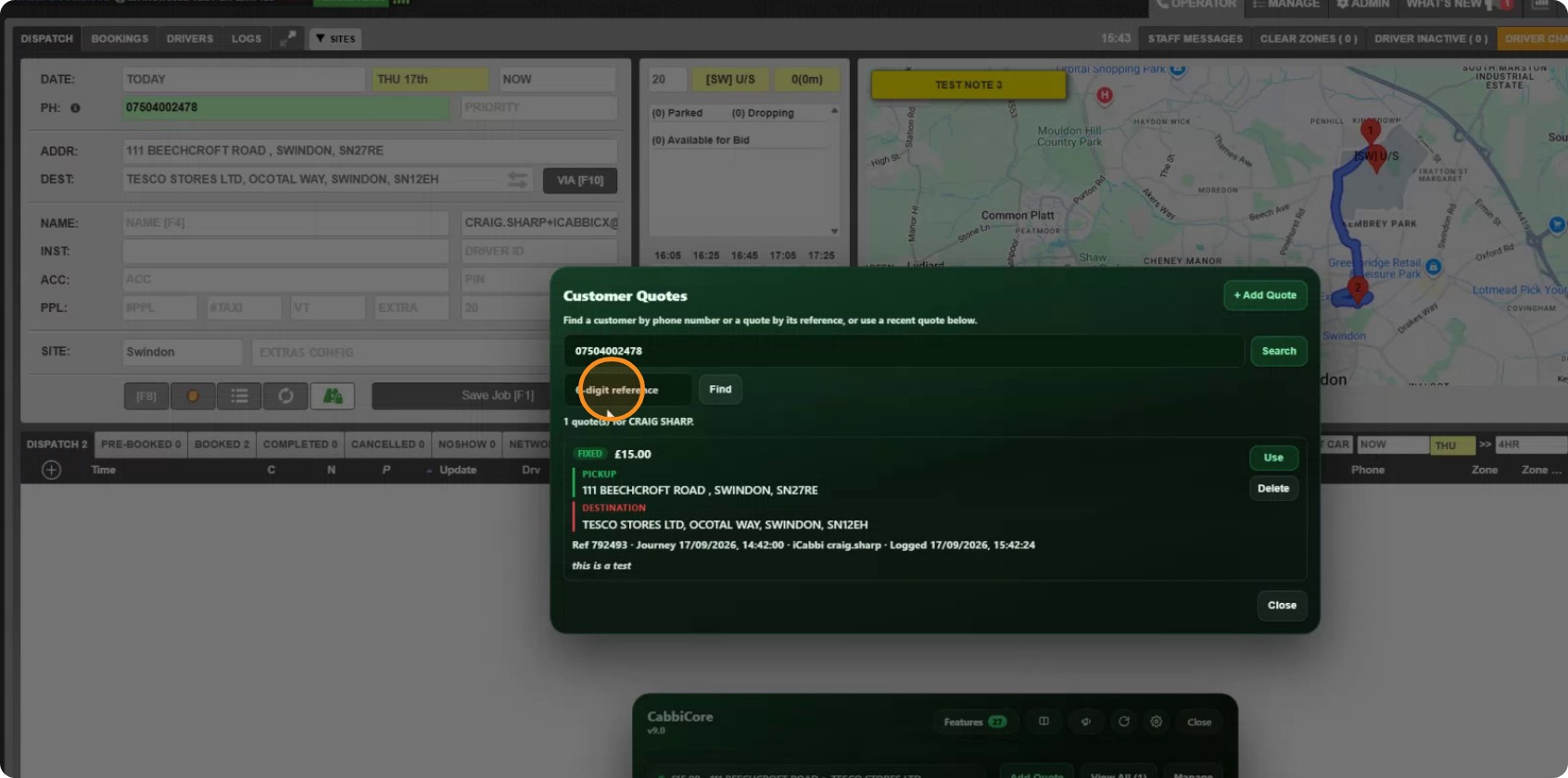
You do not need a booking open to do this. Customer Quotes and View all work at any time, for any customer.
The list marks which are fixed and which are estimates, and lets you use one on a booking or delete ones you are done with.
What CabbiCore stores
Quotes are held against iCabbi's own customer ID, never against a phone number.
A number you type — on the booking form or into the search box — is used only inside your own browser, to ask iCabbi which customer it belongs to. It is never sent to CabbiCore.